
diff options
Diffstat (limited to 'tutorials/module_1/spyder_getting_started.md')
| -rw-r--r-- | tutorials/module_1/spyder_getting_started.md | 8 |
1 files changed, 4 insertions, 4 deletions
diff --git a/tutorials/module_1/spyder_getting_started.md b/tutorials/module_1/spyder_getting_started.md index ba055d7..c79568b 100644 --- a/tutorials/module_1/spyder_getting_started.md +++ b/tutorials/module_1/spyder_getting_started.md @@ -7,14 +7,14 @@ Using Anaconda we will select the environment we created earlier *spyder-dev* an ## Spyder Interface -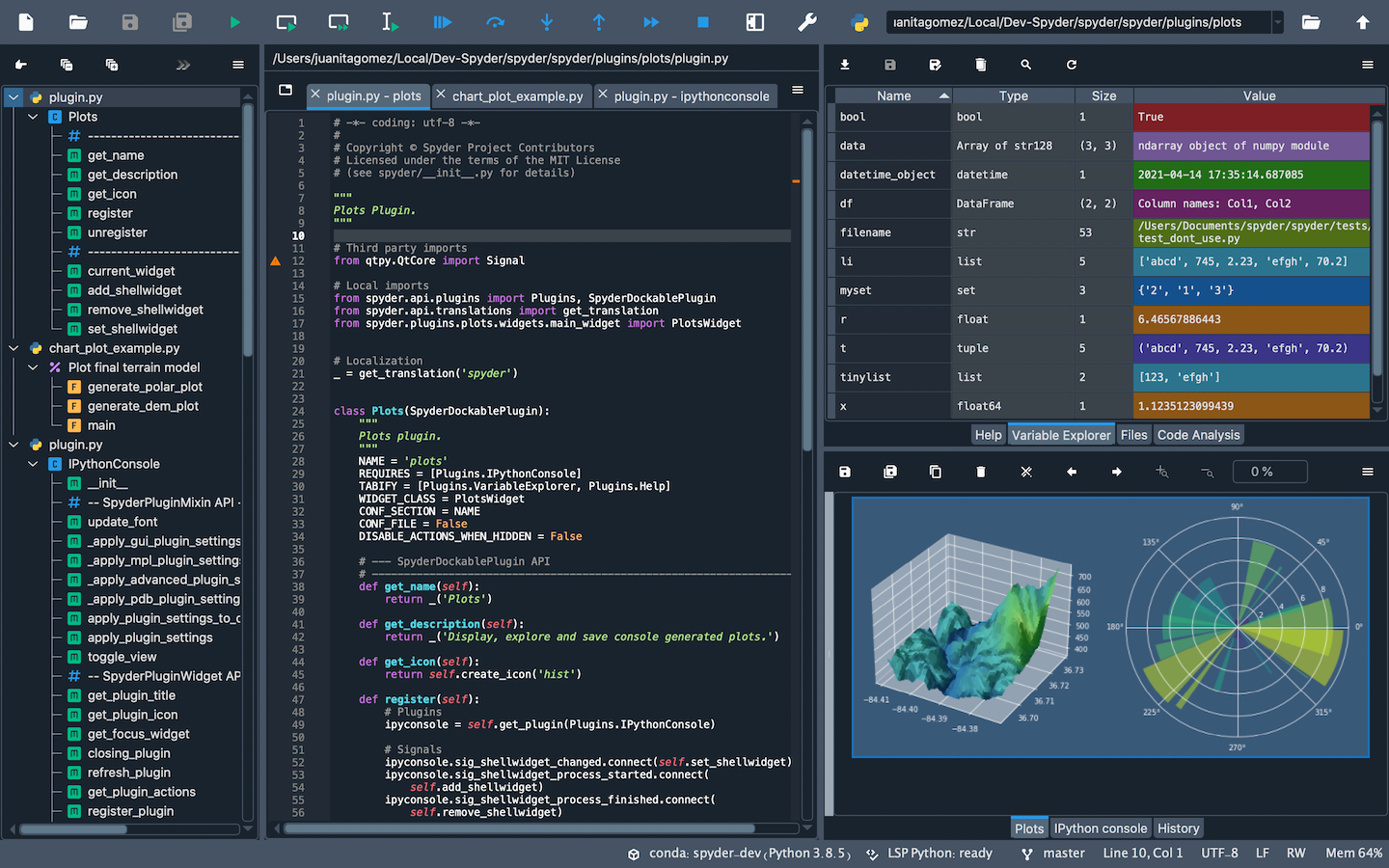 + Once you open up Spyder in it's default configuration, you'll see three sections; the editor IPython Console, Help viewer. You can customize the interface to suit your prefference and needs some of which include, rearrange, undock, hide panes. Feel free to set up Spyder as you like. ### Editor This pane is used to write your scripts. The -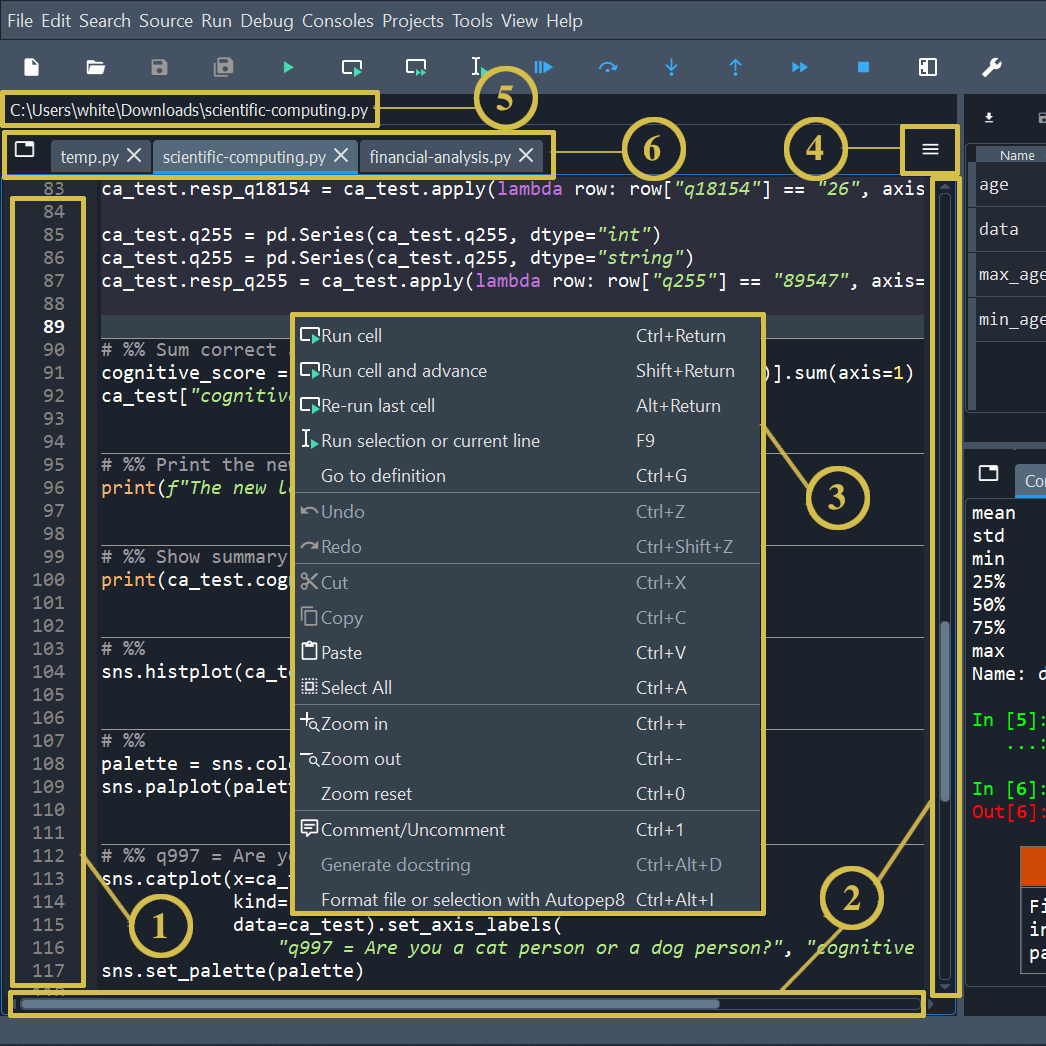 + 1. The left sidebar shows line numbers and displays any code analysis warnings that exist in the current file. Clicking a line number selects the text on that line, and clicking to the right of it sets a [breakpoint](https://docs.spyder-ide.org/5/panes/debugging.html#debugging-breakpoints). 2. The scrollbars allow vertical and horizontal navigation in a file. @@ -26,7 +26,7 @@ This pane is used to write your scripts. The ### IPython Console This pane allows you to interactively run functions, do math computations, assign and modify variables. -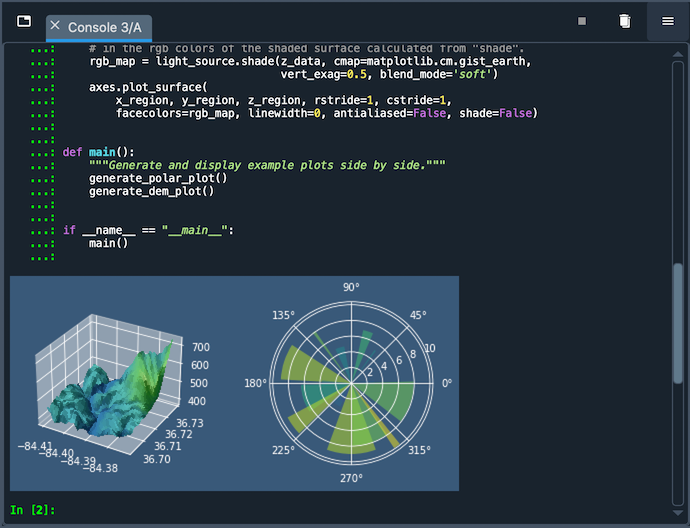 + - Automatic code completion - Real-time function calltips @@ -37,5 +37,5 @@ This pane allows you to interactively run functions, do math computations, assig ### Variable Explorer This pane shows all the defined variables (objects) stored. This can be used to identify the data type of variables, the size and inspect larger arrays. Double clicking the value cell opens up a window which allowing you to inspect the data in a spreadsheet like view. -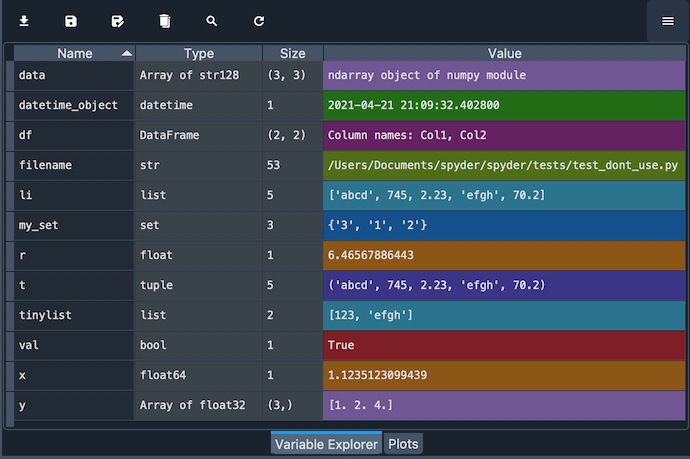 + |