
diff options
Diffstat (limited to 'tutorials')
| -rw-r--r-- | tutorials/01_installing_anaconda.md | 8 | ||||
| -rw-r--r-- | tutorials/02_intro_to_anaconda.md | 43 | ||||
| -rw-r--r-- | tutorials/readme.md | 4 |
3 files changed, 33 insertions, 22 deletions
diff --git a/tutorials/01_installing_anaconda.md b/tutorials/01_installing_anaconda.md index 52bc116..807fbed 100644 --- a/tutorials/01_installing_anaconda.md +++ b/tutorials/01_installing_anaconda.md @@ -9,13 +9,13 @@ Anaconda is an open source data science and artificial intelligence distribution Anaconda Navigator is a desktop graphical user interface (GUI) inluded in Anaconda distribution that allows users to launch application and manage Conda Packages, environments and channels without using a command-line interface (CLI). -Wikipedia ## Instructions -**Step 1:** Find the latest version of Navigator from the official Anaconda Inc. website: https://www.anaconda.com/products/navigator +1. Find the latest version of Navigator from the official Anaconda Inc. website: https://www.anaconda.com/products/navigator https://www.anaconda.com/download -**Step 2:** Press the *Download Now* button. +2. Press the *Download Now* button. -**Step 3:** Press the *Skip registration* button or submit your email address to subscribe to the Anaconda email list. +3. Press the *Skip registration* button or submit your email address to subscribe to the Anaconda email list. -**Step 4:** Under Anaconda Installers press *Download* or find the appropriate version for your operating system below. +4. Under Anaconda Installers press *Download* or find the appropriate version for your operating system below. Proceed to next section for your respective operating system. diff --git a/tutorials/02_intro_to_anaconda.md b/tutorials/02_intro_to_anaconda.md index 75cea67..464be83 100644 --- a/tutorials/02_intro_to_anaconda.md +++ b/tutorials/02_intro_to_anaconda.md @@ -14,32 +14,43 @@ Note to windows 10 users: Some installation instances do not allow users to sear Once Navigator starts, under *Home*, you'll see tiles of programs that come with anaconda. The tab allows you to launch the programs we will be using in this course. Before jumping straight into the programs we will first need to configure our Python instance. -The *Environment* page allows us to install a variety of libraries and configure our environements for different project, more on this in the next section. +The *Environment* page allows us to install a variety of libraries and configure our environments for different project, more on this in the next section. ## Environments -A Python environment is like a "container" where you can have all the tools, libraries, and dependencies your Python project needs without interfering with other projects. Think of it as a toolbox dedicated to a specific task. Although the base enviroment comes with many libraries and programs pre-installed, it's recommended to create a dedicated environment for your projects. This protects the base environment from breaking due to complex dependency conflicts. +A Python environment is like a "container" where you can have all the tools, libraries, and dependencies your Python project needs without interfering with other projects. Think of it as a toolbox dedicated to a specific task. + +Although the base environment comes with many libraries and programs pre-installed, it's recommended to create a dedicated environment for your projects. This protects the base environment from breaking due to complex dependency conflicts. Let us go ahead and create a new environment for us to use. + +1. Click on the *Environments* page located on the left hand side. -Let us go ahead and create a new environment for us to use. Click on the *Environments* page located on the left hand side. 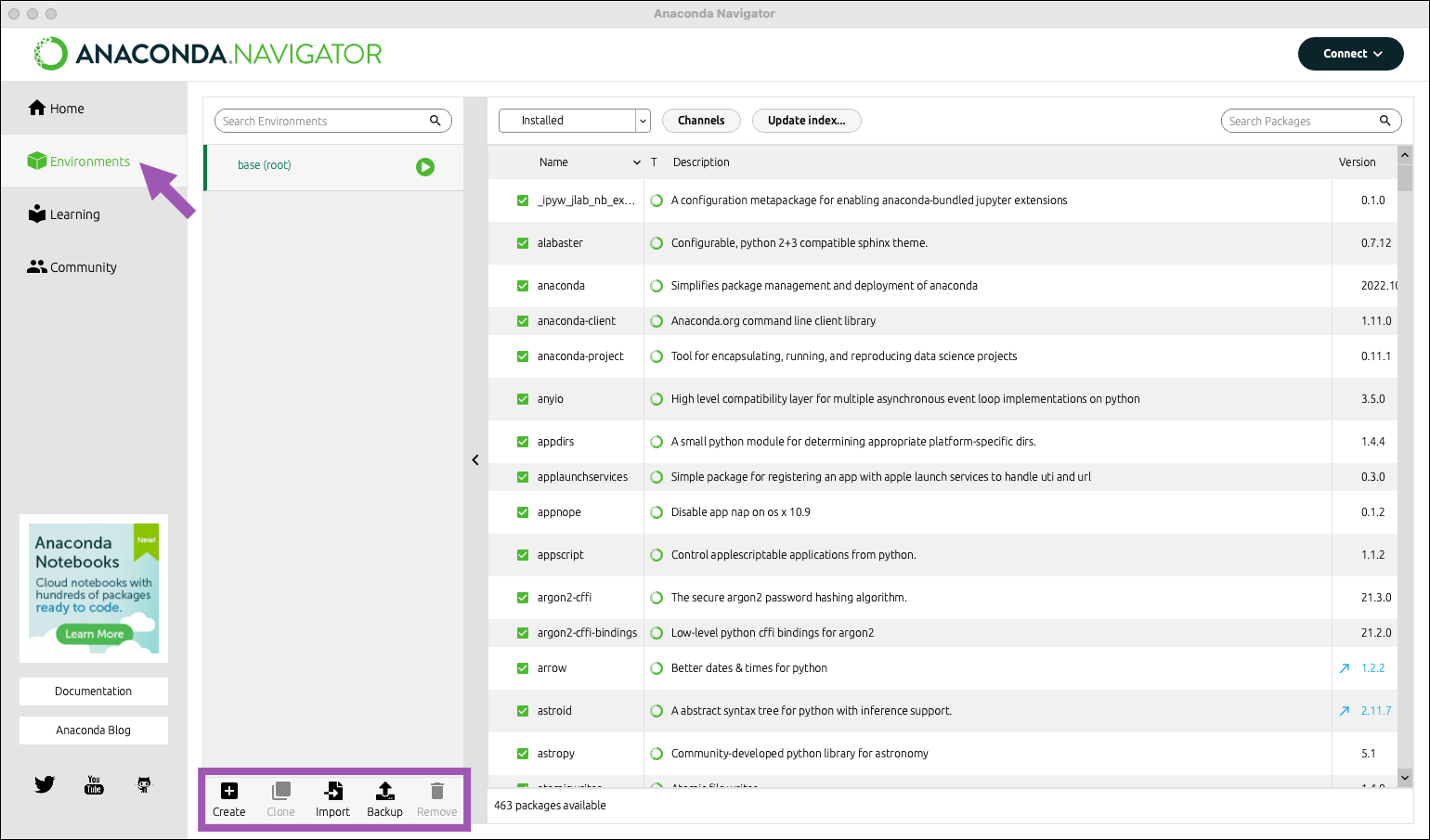 -At the bottom of the environments list, click *Create*. +2. At the bottom of the environments list, click *Create*. + 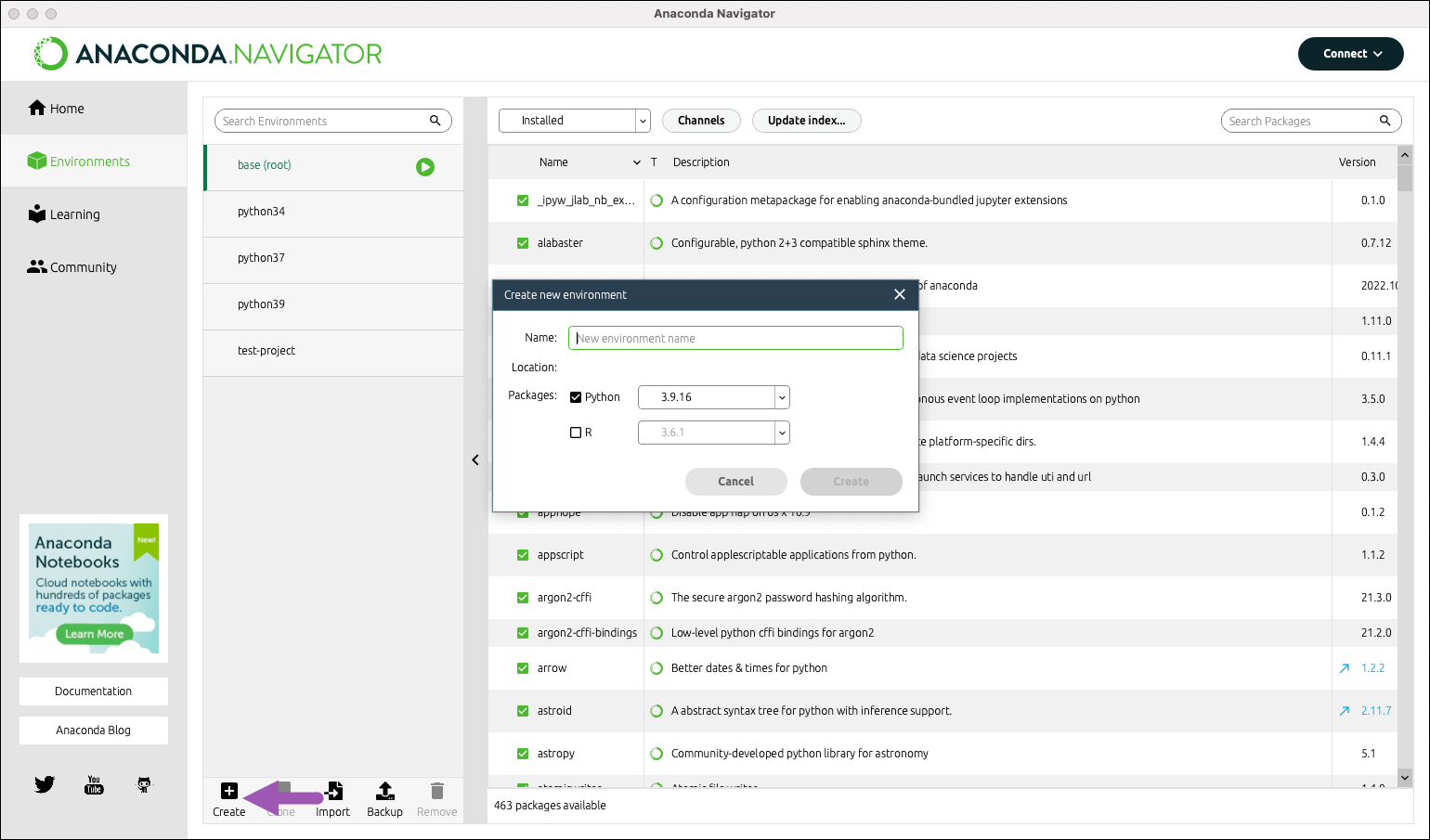 -Select the python checkbox. -Select versions of python. For this tutorial we will be using version X.XX.X. -Choose an apropriate name for your project. We will be creating an environment for Spyder IDE so we'll call it "spyder-dev". -Click *Create*. +3. Select the python checkbox. +4. Select versions of python. For this tutorial we will be using version 3.XX.X. +5. Choose an appropriate name for your project. We will be creating an environment for Spyder IDE so we'll call it "spyder-dev". +6. Click *Create*. For more information see [Anaconda Environments](https://docs.anaconda.com/working-with-conda/environments/) and [Managing environment](https://docs.anaconda.com/navigator/tutorials/manage-environments/). ## Package Management -Now that we have a clean environment let us install some library we will be using for this class. Navigate to the environment page and select the environment we just created in the previous section. +Now that we have a clean environment let us install some library we will be using for this class. + +1. Navigate to the environment page and select the environment we just created in the previous section. 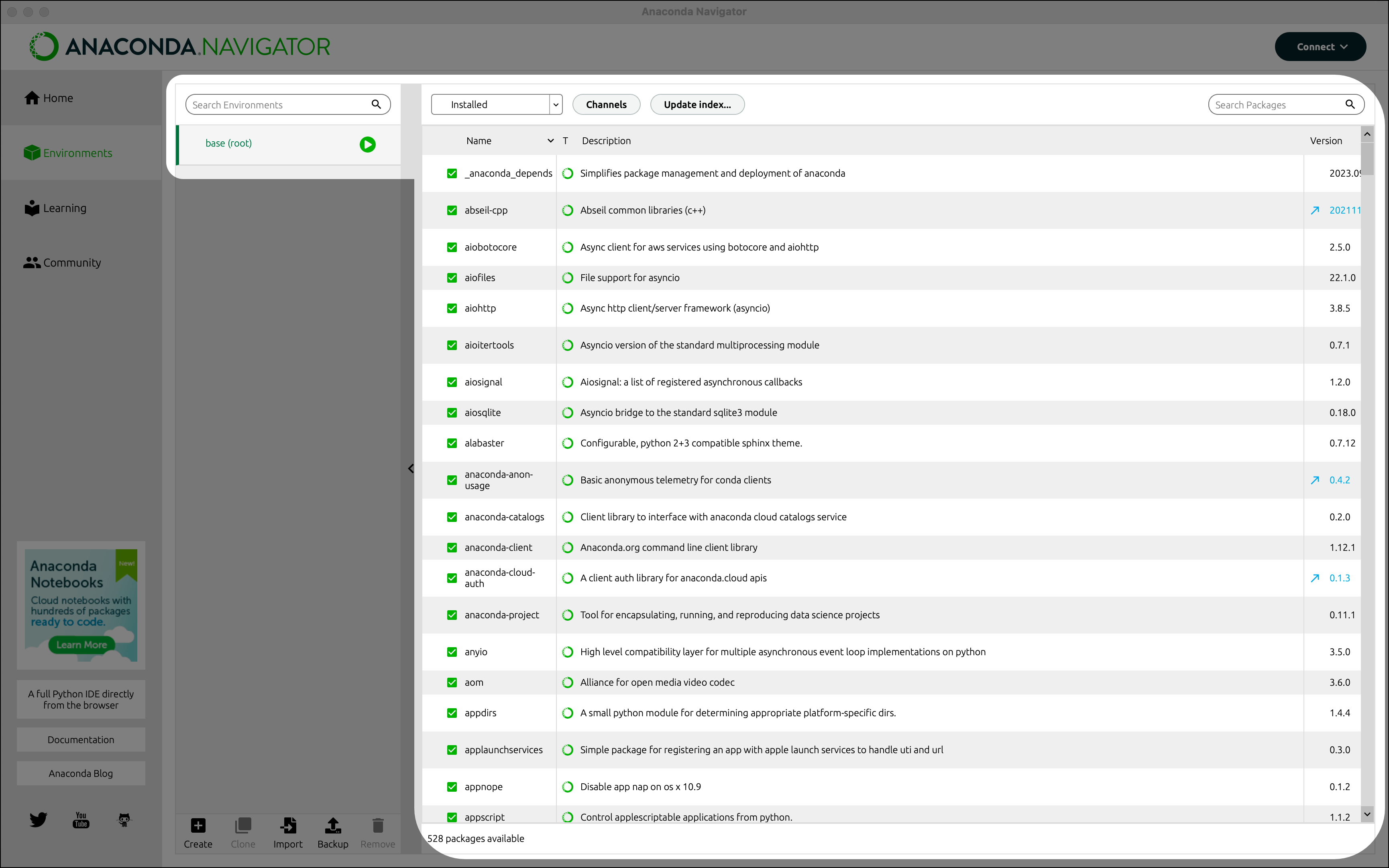 -Use the search bar in the top right corner to search for the following packages: -- **numpy**: Numerical Computation library. -- **scipy**: Scientific and techical computing. -- **pandas**: data manipulation and analysis. -- **matplotlib**: creating plots and visualizations. -- **sympy**: symbolic mathematics. -- **cython**: optimizing Python code and interfacing with C++ code. +2. Use the search bar in the top right corner to search for the following packages: + +| Library | Usage | +| ---------- | ---------------------------------------------------- | +| numpy | Numerical computation | +| scipy | Scientific and techical computing | +| pandas | Data manipulation and analysis | +| matplotlib | Plots and visualizations | +| sympy | Symbolic mathematics | +| cython | Optimizing Python code and interfacing with C++ code | + + diff --git a/tutorials/readme.md b/tutorials/readme.md index 7b8df3f..737f169 100644 --- a/tutorials/readme.md +++ b/tutorials/readme.md @@ -3,11 +3,11 @@ This directory contains all the tutorials. ## Files -### 1.0 Introduction to basic +### 1.0 Introduction to Anaconda - [installing_anaconda.md](installing_anaconda.md) - [intro_to_anaconda.md](intro_to_anaconda.md) - - Package management - Environments + - Package Management - [version_control.md](version_control.md) ### 2.0 Computing fundamentals |