
diff options
| author | Christian Kolset <christian.kolset@gmail.com> | 2025-04-24 17:39:37 -0600 |
|---|---|---|
| committer | Christian Kolset <christian.kolset@gmail.com> | 2025-04-24 17:39:37 -0600 |
| commit | 2d2b7b9f5731dc5c7bda29c917a6cc5f17b5160e (patch) | |
| tree | b566dc6e44f9e63abc94a18f6697010ea981ab89 | |
| parent | e53c35223bed9a32f1e9cd3fe75caf344d4b5c7e (diff) | |
Updated markdown formatting for latex conversion.
| -rw-r--r-- | admin/meeting-notes/2025-04-11.md | 2 | ||||
| -rw-r--r-- | admin/meeting-notes/2025-04-25.md | 44 | ||||
| -rw-r--r-- | book/computingME.pdf | bin | 374097 -> 807167 bytes | |||
| -rw-r--r-- | book/computingME.tex | 9 | ||||
| l--------- | book/figures | 1 | ||||
| -rw-r--r-- | tutorials/module_1/array.md | 34 | ||||
| -rw-r--r-- | tutorials/module_1/arrays.ipynb | 100 | ||||
| -rw-r--r-- | tutorials/module_1/basics_of_python.ipynb | 128 | ||||
| -rw-r--r-- | tutorials/module_1/basics_of_python.md | 12 | ||||
| -rw-r--r-- | tutorials/module_1/classes_and_objects.md | 4 | ||||
| -rw-r--r-- | tutorials/module_1/control_structures.md | 3 | ||||
| -rw-r--r-- | tutorials/module_1/functions.md | 2 | ||||
| -rw-r--r-- | tutorials/module_1/fundamatals_of_programming.ipynb | 6 | ||||
| -rw-r--r-- | tutorials/module_1/installing_anaconda.md | 2 | ||||
| -rw-r--r-- | tutorials/module_1/intro_to_anaconda.md | 2 | ||||
| -rw-r--r-- | tutorials/module_1/jupyter_lab_notebook.md | 12 | ||||
| -rw-r--r-- | tutorials/module_2/debugging_code.md | 34 |
17 files changed, 224 insertions, 171 deletions
diff --git a/admin/meeting-notes/2025-04-11.md b/admin/meeting-notes/2025-04-11.md index c68ceae..acfc058 100644 --- a/admin/meeting-notes/2025-04-11.md +++ b/admin/meeting-notes/2025-04-11.md @@ -37,7 +37,7 @@ and questions --- ## Discussion -- Module 2 -> Learn how to use built in tools to solve problems suchas fsolve, or other numerical methods +- Module 2 -> Learn how to use built in tools to solve problems such as fsolve, or other numerical methods - Module 3 -> Learn the mathematics of the numerical methods. - Module 1 -> Make the tutorials more interactive and set up problems for end of the tutorial problem. diff --git a/admin/meeting-notes/2025-04-25.md b/admin/meeting-notes/2025-04-25.md new file mode 100644 index 0000000..d1d3529 --- /dev/null +++ b/admin/meeting-notes/2025-04-25.md @@ -0,0 +1,44 @@ +## Updates +- Worked on Jupyter Notebooks +- Brainstorming for applications of practical problems +- Writing in .md -> convert to .ipynb & .tex + +--- +## Topics +and questions + +- Application of practical problems to real engineering problems + -> Started "material_research.md" + +- Course overview + -> Cleaned up module 1 + -> Re-arranged Module 2 + -> **Go through** together + +- Good Potential Textbook for Numerical methods + -> https://pythonnumericalmethods.studentorg.berkeley.edu/notebooks/Index.html + +--- +## Discussion +- Module 2 -> Learn how to use built in tools to solve problems such as fsolve, or other numerical methods +- Module 3 -> Learn the mathematics of the numerical methods. +- Module 1 -> Make the tutorials more interactive and set up problems for end of the tutorial problem. + +- Tutorial rough format: + - Introduction + - Interactive code cell + - Explanations + - Interactive code cell + - End of tutorial problem (could use data from previous code cells) + +- Make full & partial notebooks -> Work on full notebook and then remove content for a partial version at the end. + +- Give students code for concepts in problems that students haven't learned yet. Adapt for each tutorial and make students do more themselves in later interactions. + +--- +## Actions +- [ ] Finish off Jupyter tutorial (.md version) +- [ ] Re-think module 2 format +- [ ] Finish Module 2 +- [ ] Start Module 3 +- [ ] Work on Jupyter Notebooks & focus on interaction for module 1
\ No newline at end of file diff --git a/book/computingME.pdf b/book/computingME.pdf Binary files differindex 1f81b28..739cd21 100644 --- a/book/computingME.pdf +++ b/book/computingME.pdf diff --git a/book/computingME.tex b/book/computingME.tex index b793dec..31cba87 100644 --- a/book/computingME.tex +++ b/book/computingME.tex @@ -15,13 +15,10 @@ \tableofcontents %\listoffigures %\listoftables -\chapter{Acknowledgements} -I would like to thank my supervisor, Professor Someone. This -research was funded by the Imaginary Research Council. -\chapter{Using this book} -A brief summary of the project goes here. -\mainmatter +%\chapter{Acknowledgements} +%I would like to thank my supervisor, Professor Someone. This research was funded by the Imaginary Research Council. \include{module0/module0} +\mainmatter \include{module1/module1} \include{module2/module2} \include{module3/module3} diff --git a/book/figures b/book/figures new file mode 120000 index 0000000..c849073 --- /dev/null +++ b/book/figures @@ -0,0 +1 @@ +../tutorials/figures
\ No newline at end of file diff --git a/tutorials/module_1/array.md b/tutorials/module_1/array.md index c8f2452..3385231 100644 --- a/tutorials/module_1/array.md +++ b/tutorials/module_1/array.md @@ -19,14 +19,13 @@ A three-dimensional array would be like a set of tables, perhaps stacked as thou If the load on this block changes over time, then we may want to add a 4th dimension i.e. additional sets of 3-D arrays for each time increment. As you can see - the more dimensions we add, the more complicated of a problem we have to solve. It is possible to increase the number of dimensions to the n-th order. This course we will not be going beyond dimensional analysis. ---- -# Numpy - the python's array library +## Numpy - the python's array library In this tutorial we will be introducing arrays and we will be using the numpy library. Arrays, lists, vectors, matrices, sets - You might've heard of them before, they all store data. In programming, an array is a variable that can hold more than one value at a time. We will be using the Numpy python library to create arrays. Since we already have installed Numpy previously, we can start using the package. Before importing our first package, let's as ourselves *what is a package?* A package can be thought of as pre-written python code that we can re-use. This means the for every script that we write in python we need to tell it to use a certain package. We call this importing a package. -## Importing Numpy +### Importing Numpy When using packages in python, we need to let it know what package we will be using. This is called importing. To import numpy we need to declare it a the start of a script as follows: ```python import numpy as np @@ -34,8 +33,7 @@ import numpy as np - `import` - calls for a library to use, in our case it is Numpy. - `as` - gives the library an alias in your script. It's common convention in Python programming to make the code shorter and more readable. We will be using *np* as it's a standard using in many projects. ---- -# Creating arrays +## Creating arrays Now that we have imported the library we can create a one dimensional array or *vector* with three elements. ```python x = np.array([1,2,3]) @@ -52,9 +50,9 @@ matrix = np.array([[1,2,3], *Note: for every array we nest, we get a new dimension in our data structure.* -## Numpy array creation functions +### Numpy array creation functions Numpy comes with some built-in function that we can use to create arrays quickly. Here are a couple of functions that are commonly used in python. -### np.arange +#### np.arange The `np.arange()` function returns an array with evenly spaced values within a specified range. It is similar to the built-in `range()` function in Python but returns a Numpy array instead of a list. The parameters for this function are the start value (inclusive), the stop value (exclusive), and the step size. If the step size is not provided, it defaults to 1. ```python @@ -64,7 +62,7 @@ array([0. , 1., 2., 3. ]) In this example, `np.arange(4)` generates an array starting from 0 and ending before 4, with a step size of 1. -### np.linspace +#### np.linspace The `np.linspace()` function returns an array of evenly spaced values over a specified range. Unlike `np.arange()`, which uses a step size to define the spacing between elements, `np.linspace()` uses the number of values you want to generate and calculates the spacing automatically. It accepts three parameters: the start value, the stop value, and the number of samples. ```python @@ -81,14 +79,14 @@ x = np.linspace(0,100,101) y = np.sin(x) ``` -### Other useful functions +#### Other useful functions - `np.zeros()` - `np.ones()` - `np.eye()` -## Working with Arrays +### Working with Arrays Now that we have been introduced to some ways to create arrays using the Numpy functions let's start using them. -### Indexing +#### Indexing Indexing in Python allows you to access specific elements within an array based on their position. This means you can directly retrieve and manipulate individual items as needed. Python uses **zero-based indexing**, meaning the first element is at position **0** rather than **1**. This approach is common in many programming languages. For example, in a list with five elements, the first element is at index `0`, followed by elements at indices `1`, `2`, `3`, and `4`. @@ -102,22 +100,22 @@ thrust_lbf = np.array(0.603355, 2.019083, 2.808092, 4.054973, 1.136618, 0.943668 ``` Due to the nature of zero-based indexing. If we want to call the value `4.054973` that will be the 3rd index. -### Operations on arrays +#### Operations on arrays - Arithmetic operations (`+`, `-`, `*`, `/`, `**`) - `np.add()`, `np.subtract()`, `np.multiply()`, `np.divide()` - `np.dot()` for dot product - `np.matmul()` for matrix multiplication - `np.linalg.inv()`, `np.linalg.det()` for linear algebra -#### Statistics +##### Statistics - `np.mean()`, `np.median()`, `np.std()`, `np.var()` - `np.min()`, `np.max()`, `np.argmin()`, `np.argmax()` - Summation along axes: `np.sum(arr, axis=0)` -#### Combining arrays +##### Combining arrays - Concatenation: `np.concatenate((arr1, arr2), axis=0)` - Stacking: `np.vstack()`, `np.hstack()` - Splitting: `np.split()` -# Exercise +## Exercise Let's solve a statics problem given the following problem A simply supported bridge of length L=20L = 20L=20 m is subjected to three point loads: @@ -128,7 +126,7 @@ A simply supported bridge of length L=20L = 20L=20 m is subjected to three point The bridge is supported by two reaction forces at points AAA (left support) and BBB (right support). We assume the bridge is in static equilibrium, meaning the sum of forces and sum of moments about any point must be zero. -#### Equilibrium Equations: +##### Equilibrium Equations: 1. **Sum of Forces in the Vertical Direction**: $RA+RB−P1−P2−P3=0R_A + R_B - P_1 - P_2 - P_3 = 0RA+RB−P1−P2−P3=0$ @@ -137,12 +135,12 @@ The bridge is supported by two reaction forces at points AAA (left support) and 3. **Sum of Moments About Point B**: $20RA−15P3−10P2−5P1=020 R_A - 15 P_3 - 10 P_2 - 5 P_1 = 020RA−15P3−10P2−5P1=0$ -#### System of Equations: +##### System of Equations: {RA+RB−10−15−20=05(10)+10(15)+15(20)−20RB=020RA−5(10)−10(15)−15(20)=0\begin{cases} R_A + R_B - 10 - 15 - 20 = 0 \\ 5(10) + 10(15) + 15(20) - 20 R_B = 0 \\ 20 R_A - 5(10) - 10(15) - 15(20) = 0 \end{cases}⎩ -## Solution +### Solution ```python import numpy as np diff --git a/tutorials/module_1/arrays.ipynb b/tutorials/module_1/arrays.ipynb index efb14bb..7fe777d 100644 --- a/tutorials/module_1/arrays.ipynb +++ b/tutorials/module_1/arrays.ipynb @@ -22,11 +22,12 @@ "A three-dimensional array would be like a set of tables, perhaps stacked as though they were printed on separate pages. If we visualize the position of each element as a position in space. Then we can represent the value of the element as a property. In other words, if we were to analyze the stress concentration of an aluminum block, the property would be stress.\n", "\n", "- From [Numpy documentation](https://numpy.org/doc/2.2/user/absolute_beginners.html)\n", - "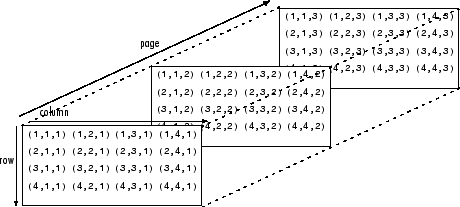\n", + "\n", "\n", "If the load on this block changes over time, then we may want to add a 4th dimension i.e. additional sets of 3-D arrays for each time increment. As you can see - the more dimensions we add, the more complicated of a problem we have to solve. It is possible to increase the number of dimensions to the n-th order. This course we will not be going beyond dimensional analysis.\n", "\n", "---\n", + "\n", "# Numpy - the python's array library\n", "\n", "In this tutorial we will be introducing arrays and we will be using the numpy library. Arrays, lists, vectors, matrices, sets - You might've heard of them before, they all store data. In programming, an array is a variable that can hold more than one value at a time. We will be using the Numpy python library to create arrays. Since we already have installed Numpy previously, we can start using the package.\n", @@ -42,6 +43,7 @@ "- `as` - gives the library an alias in your script. It's common convention in Python programming to make the code shorter and more readable. We will be using *np* as it's a standard using in many projects.\n", "\n", "---\n", + "\n", "# Creating arrays\n", "Now that we have imported the library we can create a one dimensional array or *vector* with three elements.\n", "```python\n", @@ -78,12 +80,13 @@ "metadata": {}, "source": [ "# Practice Problem\n", + "\n", "Problem statement" ] }, { "cell_type": "code", - "execution_count": 4, + "execution_count": 1, "id": "7f2bcfe9-6e3d-424d-a08f-520682b3bdb5", "metadata": {}, "outputs": [ @@ -113,6 +116,7 @@ "source": [ "## Numpy array creation functions\n", "Numpy comes with some built-in function that we can use to create arrays quickly. Here are a couple of functions that are commonly used in python.\n", + "\n", "### np.arange\n", "The `np.arange()` function returns an array with evenly spaced values within a specified range. It is similar to the built-in `range()` function in Python but returns a Numpy array instead of a list. The parameters for this function are the start value (inclusive), the stop value (exclusive), and the step size. If the step size is not provided, it defaults to 1.\n", "\n", @@ -158,7 +162,7 @@ }, { "cell_type": "code", - "execution_count": 6, + "execution_count": 2, "id": "0c5de840-6256-4de2-9845-1c80a12c062d", "metadata": {}, "outputs": [ @@ -182,6 +186,7 @@ "source": [ "## Working with Arrays\n", "Now that we have been introduced to some ways to create arrays using the Numpy functions let's start using them.\n", + "\n", "### Indexing\n", "Indexing in Python allows you to access specific elements within an array based on their position. This means you can directly retrieve and manipulate individual items as needed.\n", "\n", @@ -196,16 +201,19 @@ "```\n", "\n", "Due to the nature of zero-based indexing. If we want to call the value `4.054973` that will be the 3rd index. \n", + "\n", "### Operations on arrays\n", "- Arithmetic operations (`+`, `-`, `*`, `/`, `**`)\n", "- `np.add()`, `np.subtract()`, `np.multiply()`, `np.divide()`\n", "- `np.dot()` for dot product\n", "- `np.matmul()` for matrix multiplication\n", "- `np.linalg.inv()`, `np.linalg.det()` for linear algebra\n", + " \n", "#### Statistics\n", "- `np.mean()`, `np.median()`, `np.std()`, `np.var()`\n", "- `np.min()`, `np.max()`, `np.argmin()`, `np.argmax()`\n", "- Summation along axes: `np.sum(arr, axis=0)`\n", + "\n", "#### Combining arrays\n", "- Concatenation: `np.concatenate((arr1, arr2), axis=0)`\n", "- Stacking: `np.vstack()`, `np.hstack()`\n", @@ -215,24 +223,7 @@ }, { "cell_type": "markdown", - "id": "b1194250-2861-4001-899c-ced19f0f34ee", - "metadata": {}, - "source": [ - "## Practice problem\n", - "Problem statement here" - ] - }, - { - "cell_type": "code", - "execution_count": null, - "id": "777186e0-f734-4bc4-93f0-6746b428f821", - "metadata": {}, - "outputs": [], - "source": [] - }, - { - "cell_type": "markdown", - "id": "29f020bf-b714-49a7-96bf-4e20138c7722", + "id": "e7d2add3-0806-49a0-9b85-4b23e96eca7e", "metadata": {}, "source": [ "# Exercise\n", @@ -240,28 +231,55 @@ "\n", "A simply supported bridge of length L=20L = 20L=20 m is subjected to three point loads:\n", "\n", - "- $P1=10P_1 = 10P1=10 kN$ at $x=5x = 5x=5 m$\n", - "- $P2=15P_2 = 15P2=15 kN$ at $x=10x = 10x=10 m$\n", - "- $P3=20P_3 = 20P3=20 kN$ at $x=15x = 15x=15 m$\n", + "- $P1=1010 kN$ at $x=5m$\n", + "- $P2=15 kN$ at $x=10m$\n", + "- $P3=20 kN$ at $x=15m$\n", "\n", "The bridge is supported by two reaction forces at points AAA (left support) and BBB (right support). We assume the bridge is in static equilibrium, meaning the sum of forces and sum of moments about any point must be zero.\n", "\n", "#### Equilibrium Equations:\n", "\n", "1. **Sum of Forces in the Vertical Direction**:\n", - " $RA+RB−P1−P2−P3=0R_A + R_B - P_1 - P_2 - P_3 = 0RA+RB−P1−P2−P3=0$\n", - "2. **Sum of Moments About Point A**:\n", - " $5P1+10P2+15P3−20RB=05 P_1 + 10 P_2 + 15 P_3 - 20 R_B = 05P1+10P2+15P3−20RB=0$\n", - "3. **Sum of Moments About Point B**:\n", - " $20RA−15P3−10P2−5P1=020 R_A - 15 P_3 - 10 P_2 - 5 P_1 = 020RA−15P3−10P2−5P1=0$\n", "\n", - "#### System of Equations:\n", + " $R_A + R_B - P_1 - P_2 - P_3 = 0$\n", + " \n", + "3. **Sum of Moments About Point A**:\n", "\n", - "{RA+RB−10−15−20=05(10)+10(15)+15(20)−20RB=020RA−5(10)−10(15)−15(20)=0\\begin{cases} R_A + R_B - 10 - 15 - 20 = 0 \\\\ 5(10) + 10(15) + 15(20) - 20 R_B = 0 \\\\ 20 R_A - 5(10) - 10(15) - 15(20) = 0 \\end{cases}⎩\n", + " $5 P_1 + 10 P_2 + 15 P_3 - 20 R_B = 0$\n", + " \n", + "5. **Sum of Moments About Point B**:\n", "\n", + " $20 R_A - 15 P_3 - 10 P_2 - 5 P_1 = 0$\n", "\n", - "## Solution\n", - "```python\n", + "\n", + "#### System of Equations:\n", + "\\begin{cases} R_A + R_B - 10 - 15 - 20 = 0 \\\\ 5(10) + 10(15) + 15(20) - 20 R_B = 0 \\\\ 20 R_A - 5(10) - 10(15) - 15(20) = 0 \\end{cases}" + ] + }, + { + "cell_type": "markdown", + "id": "54b896f0-97be-4ffb-b654-bb5108f99374", + "metadata": {}, + "source": [ + "### Solution" + ] + }, + { + "cell_type": "code", + "execution_count": 3, + "id": "fc0244f6-d7f2-499a-a929-7f080d981b3e", + "metadata": {}, + "outputs": [ + { + "name": "stdout", + "output_type": "stream", + "text": [ + "Reaction force at A (R_A): 25.11 kN\n", + "Reaction force at B (R_B): -24.89 kN\n" + ] + } + ], + "source": [ "import numpy as np\n", "\n", "# Define the coefficient matrix A\n", @@ -279,21 +297,13 @@ "])\n", "\n", "# Solve the system of equations Ax = b\n", - "x = np.linalg.lstsq(A, b, rcond=None)[0] # Using least squares to handle potential overdetermination\n", + "# Using least squares to handle potential overdetermination\n", + "x = np.linalg.lstsq(A, b, rcond=None)[0] \n", "\n", "# Display the results\n", "print(f\"Reaction force at A (R_A): {x[0]:.2f} kN\")\n", - "print(f\"Reaction force at B (R_B): {x[1]:.2f} kN\")\n", - "```" + "print(f\"Reaction force at B (R_B): {x[1]:.2f} kN\")" ] - }, - { - "cell_type": "code", - "execution_count": null, - "id": "5c20b2fd-d9ce-49fa-b2d7-259e5b121bc7", - "metadata": {}, - "outputs": [], - "source": [] } ], "metadata": { @@ -312,7 +322,7 @@ "name": "python", "nbconvert_exporter": "python", "pygments_lexer": "ipython3", - "version": "3.12.9" + "version": "3.13.2" } }, "nbformat": 4, diff --git a/tutorials/module_1/basics_of_python.ipynb b/tutorials/module_1/basics_of_python.ipynb index 1776291..fc98569 100644 --- a/tutorials/module_1/basics_of_python.ipynb +++ b/tutorials/module_1/basics_of_python.ipynb @@ -2,14 +2,6 @@ "cells": [ { "cell_type": "markdown", - "id": "d9cee0e6-c132-44cd-acd4-1208721e2007", - "metadata": {}, - "source": [ - "# " - ] - }, - { - "cell_type": "markdown", "id": "a5c32509-d4c7-4fd5-92cf-1a923b78f443", "metadata": {}, "source": [ @@ -17,12 +9,6 @@ "\n", "This page contains important fundamental concepts used in Python such as syntax, operators, order or precedence and more.\n", "\n", - "[Syntax](1_05_basics_of_python#Syntax)\n", - "[Operators](1_05_basics_of_python#Operators)\n", - "[Order of operation](1_05_basics_of_python#Order%20of%20Operation)\n", - "[Data types](1_05_basics_of_python#data%20types)\n", - "[Variables](1_05_basics_of_python#Variables)\n", - "\n", "---" ] }, @@ -34,8 +20,10 @@ }, "source": [ "## Syntax\n", + "\n", "### Indentations and blocks\n", "In python *indentations* or the space at the start of each line, signifies a block of code. This becomes important when we start working with function and loops. We will talk more about this in the controls structures tutorial. \n", + "\n", "### Comments\n", "Comments can be added to your code using the hash operator (#). Any text behind the comment operator till the end of the line will be rendered as a comment.\n", "If you have an entire block of text or code that needs to be commented out, the triple quotation marks (\"\"\") can be used. Once used all the code after it will be considered a comment until the comment is ended with the triple quotation marks.\n", @@ -53,6 +41,7 @@ "source": [ "## Operators\n", "In python, operators are special symbols or keywords that perform operations on values or variables. This section covers some of the most common operator that you will see in this course.\n", + "\n", "### Arithmetic operators\n", "| Operator | Name |\n", "| --- | --- |\n", @@ -168,21 +157,8 @@ }, { "cell_type": "code", - "execution_count": 1, - "id": "a9bc3bda-e55d-4f5a-813d-8f6316f12c64", - "metadata": {}, - "outputs": [], - "source": [ - "x = 33 # Integer\n", - "y = 3.14 # Float\n", - "name = \"Joe\" # String\n", - "is_valid = True # Boolean" - ] - }, - { - "cell_type": "code", - "execution_count": 2, - "id": "f6af843b-159f-4d10-9c84-abebde7e7bbc", + "execution_count": 19, + "id": "125e385b-27dd-4139-8904-10996b536331", "metadata": {}, "outputs": [ { @@ -194,27 +170,44 @@ } ], "source": [ + "x = 33 # Integer\n", + "y = 3.14 # Float\n", + "name = \"Joe\" # String\n", + "is_valid = True # Boolean\n", + "\n", "print(x**2+3*y)" ] }, { "cell_type": "markdown", - "id": "bcc9a481-2421-4df7-82a8-ee1e76c7f4a1", + "id": "98b37bca-8821-4866-8973-80a3315aba0b", "metadata": {}, "source": [ - "Change the x and y values above, re-run the notebook and see what happens.\n", - "\n", - "You can assign multiple variables at once:\n", + "Change the x and y values above, re-run the cell to see what happens.\n", "\n", - "```python\n", - "a, b, c = 1, 2, 3\n", - "```\n", + "You can assign multiple variables at once or on the same line." + ] + }, + { + "cell_type": "code", + "execution_count": 21, + "id": "6d9e59c3-1f38-444a-b09b-6914dba7233a", + "metadata": {}, + "outputs": [ + { + "name": "stdout", + "output_type": "stream", + "text": [ + "2 7.3 5.3 2.71828 2.71828 2.71828\n" + ] + } + ], + "source": [ + "a, b, c = 2, 7.3, 5.3\n", "\n", - "Similarly we can assign the same value to multiple variables:\n", + "x = y = z = 2.71828\n", "\n", - "```python\n", - "x = y = z = 100\n", - "```" + "print(a,b,c,x,y,z)" ] }, { @@ -251,7 +244,7 @@ }, { "cell_type": "code", - "execution_count": 3, + "execution_count": 22, "id": "a7e71be9-dd9a-42c9-84e2-cb5f8f8939b1", "metadata": {}, "outputs": [ @@ -271,6 +264,57 @@ "y = \"Hello\"\n", "print(f' Variable y is type: {type(y)}')" ] + }, + { + "cell_type": "markdown", + "id": "fcdca3e3-4386-4515-abbe-13242b55c2d7", + "metadata": {}, + "source": [ + "# Exercise\n", + "\n", + "You're analyzing a cylindrical steel rod under axial load for a design. The goal is to calculate the stress in the rod and determine if it is within safe limits.\n", + "\n", + "Given an applied force of 15,000 N on a rod with the diameter 22 mm and a yield strength of steel 250 MPa.\n", + "\n", + "Hint:\n", + "\n", + "$Stress=\\frac{Force}{Area}$ , $Area=\\frac{π d^2}{4}$" + ] + }, + { + "cell_type": "code", + "execution_count": 15, + "id": "cdcc3fde-b63e-4443-a8a1-b59396d3560e", + "metadata": {}, + "outputs": [ + { + "name": "stdout", + "output_type": "stream", + "text": [ + "Stress in rod: 39.5 MPa\n", + "The design is SAFE under the given load.\n" + ] + } + ], + "source": [ + "# Given\n", + "force_N = 15000\n", + "D_mm = 22\n", + "sigma_MPa = 250\n", + "\n", + "# Equations\n", + "area = 3.14* D_mm**2 / 4\n", + "stress = force_N / area\n", + "\n", + "# Print output\n", + "print(f\"Stress in rod: {stress:.1f} MPa\")\n", + "\n", + "# Check safety\n", + "if stress < sigma_MPa:\n", + " print(\"The design is SAFE under the given load.\")\n", + "else:\n", + " print(\"The design FAILED. Consider redesigning.\")" + ] } ], "metadata": { @@ -289,7 +333,7 @@ "name": "python", "nbconvert_exporter": "python", "pygments_lexer": "ipython3", - "version": "3.12.9" + "version": "3.13.2" } }, "nbformat": 4, diff --git a/tutorials/module_1/basics_of_python.md b/tutorials/module_1/basics_of_python.md index 48952c6..7654e92 100644 --- a/tutorials/module_1/basics_of_python.md +++ b/tutorials/module_1/basics_of_python.md @@ -2,13 +2,6 @@ This page contains important fundamental concepts used in Python such as syntax, operators, order or precedence and more. -[Syntax](1_05_basics_of_python#Syntax) -[Operators](1_05_basics_of_python#Operators) -[Order of operation](1_05_basics_of_python#Order%20of%20Operation) -[Data types](1_05_basics_of_python#data%20types) -[Variables](1_05_basics_of_python#Variables) - ---- ## Syntax ### Indentations and blocks In python *indentations* or the space at the start of each line, signifies a block of code. This becomes important when we start working with function and loops. We will talk more about this in the controls structures tutorial. @@ -16,7 +9,6 @@ In python *indentations* or the space at the start of each line, signifies a blo Comments can be added to your code using the hash operator (#). Any text behind the comment operator till the end of the line will be rendered as a comment. If you have an entire block of text or code that needs to be commented out, the triple quotation marks (""") can be used. Once used all the code after it will be considered a comment until the comment is ended with the triple quotation marks.f ---- ## Operators In python, operators are special symbols or keywords that perform operations on values or variables. This section covers some of the most common operator that you will see in this course. ### Arithmetic operators @@ -30,7 +22,6 @@ In python, operators are special symbols or keywords that perform operations on | ** | Exponentiation | | // | Floor division | - ### Comparison operators Used in conditional statements such as `if` statements or `while` loops. Note that in the computer world a double equal sign (`==`) means *is equal to*, where as the single equal sign assigns the variable or defines the variable to be something. @@ -56,7 +47,6 @@ Used in conditional statements such as `if` statements or `while` loops. Note th | is | Returns True if both variables are the same object | | is not | Returns True if both variables are not the same object | ---- ## Order of Operation Similarly to the order or precedence in mathematics, different computer languages have their own set of rules. Here is a comprehensive table of the order of operation that python follows. @@ -76,7 +66,6 @@ Similarly to the order or precedence in mathematics, different computer language | `and` | AND | | `or` | OR | ---- ## Data types Data types are different ways a computer stores data. Other data types use fewer bits than others allowing you to better utilize your computer memory. This is important for engineers because The most common data types that an engineer encounters in python are numeric types. @@ -96,7 +85,6 @@ The comprehensive table below show all built-in data types available in python. | Binary | bytes, bytearray, memoryview | | None | NoneType | ---- ## Variables A **variable** in Python is a name that stores a value, allowing you to use and manipulate data efficiently. diff --git a/tutorials/module_1/classes_and_objects.md b/tutorials/module_1/classes_and_objects.md index ec85633..3b30746 100644 --- a/tutorials/module_1/classes_and_objects.md +++ b/tutorials/module_1/classes_and_objects.md @@ -6,7 +6,6 @@ - B. Why use OOP? (vs. procedural) - C. Real-world analogies (e.g., modeling components like pumps, motors, or vehicles) ---- ## 2. Core OOP Concepts - A. **Classes and Objects** - Definitions @@ -24,21 +23,18 @@ - Method overriding - Flexibility in interfaces ---- ## 3. Python OOP Syntax and Examples - A. Define a simple class (e.g., `Spring`) - B. Instantiate objects and use methods - C. Show `__init__`, `__str__`, custom methods - D. Add a derived class (e.g., `DampedSpring` inherits from `Spring`) ---- ## 4. Engineering Applications of OOP - A. Modeling a mechanical system using classes - Example: Mass-Spring-Damper system - B. Creating reusable components (e.g., `Material`, `Beam`, `Force`) - C. Organizing simulation code with OOP ---- ## 5. Hands-On Coding Activity - A. Write a class for a basic physical component (e.g., `Motor`) - B. Add behavior (e.g., `calculate_torque`) diff --git a/tutorials/module_1/control_structures.md b/tutorials/module_1/control_structures.md index 15e97eb..f71bd7e 100644 --- a/tutorials/module_1/control_structures.md +++ b/tutorials/module_1/control_structures.md @@ -57,7 +57,6 @@ if 0 <= score <= 100: ``` ---- ## Loops in Python @@ -102,8 +101,6 @@ while i < 6: i += 1 ``` ---- - ## Loop Control Statements Python provides special statements to control the behavior of loops. These can be used to break out of a loop, skip certain iterations, or simply include a placeholder for future code. diff --git a/tutorials/module_1/functions.md b/tutorials/module_1/functions.md index 8235fe3..54c956d 100644 --- a/tutorials/module_1/functions.md +++ b/tutorials/module_1/functions.md @@ -52,7 +52,7 @@ In case you want to return multiple output variable from a single function we wi ## Summary ```python -def function_name(argument1, argument2, argument3) +def function_name(argument1, argument2, argument3): output1 = argument1 * argument2 - argument3 output2 = argument2 + argument3 return output1, output2 diff --git a/tutorials/module_1/fundamatals_of_programming.ipynb b/tutorials/module_1/fundamatals_of_programming.ipynb deleted file mode 100644 index 363fcab..0000000 --- a/tutorials/module_1/fundamatals_of_programming.ipynb +++ /dev/null @@ -1,6 +0,0 @@ -{ - "cells": [], - "metadata": {}, - "nbformat": 4, - "nbformat_minor": 5 -} diff --git a/tutorials/module_1/installing_anaconda.md b/tutorials/module_1/installing_anaconda.md index baa4d71..c6a434d 100644 --- a/tutorials/module_1/installing_anaconda.md +++ b/tutorials/module_1/installing_anaconda.md @@ -7,7 +7,7 @@ This tutorial will cover the steps on how to install Anaconda. ### What is Anaconda? Anaconda Distribution is a popular open-source Python distribution specifically designed for scientific computing, data science, machine learning, and artificial intelligence applications. It simplifies the set up and use of Python for data science, machine learning, and scientific computing. It comes with all the important tools you need, like NumPy, Pandas, and JupyterLab, so you don’t have to install everything separately. The Conda package manager helps you install and update software without worrying about breaking other programs. It also lets you create separate environments, so different projects don’t interfere with each other. Additionally, Anaconda includes programs like JupyterLab for interactive coding, and Spyer a MATLAB-like IDE. ---- + ## Instructions 1. Find the latest version of Navigator from the official Anaconda Inc. website: [Download Anaconda](https://www.anaconda.com/download) diff --git a/tutorials/module_1/intro_to_anaconda.md b/tutorials/module_1/intro_to_anaconda.md index 84c6516..cbd9dd2 100644 --- a/tutorials/module_1/intro_to_anaconda.md +++ b/tutorials/module_1/intro_to_anaconda.md @@ -11,7 +11,7 @@ To better understand how Navigator works and interacts with the anaconda ecosyst  As you schematic indicated, Navigator is a tool in the Anaconda toolbox that allows the user to select and configure python environments and libraries. Let's see how we can do this. ---- + ## Getting Started Note to windows 10 users: Some installation instances do not allow users to search the start menu for *Navigator*, instead, you'll have to find the program under the *Anaconda (anaconda3)* folder. Expand the folder and click on *Anaconda Navigator* to launch the program. diff --git a/tutorials/module_1/jupyter_lab_notebook.md b/tutorials/module_1/jupyter_lab_notebook.md index 5fa493a..14d9236 100644 --- a/tutorials/module_1/jupyter_lab_notebook.md +++ b/tutorials/module_1/jupyter_lab_notebook.md @@ -6,7 +6,6 @@ Jupyter Notebooks are often used for data science and scientific computing such *Note on the difference between Notebook and Lab: Jupyter Notebook offers a simplified, lightweight notebook authoring experience, where as, JupyterLab offers a feature-rich, tabbed multi-notebook editing environment with additional tools like a customizable interface layout and system console* ---- ## Setup and Installation Installing with Conda using CLI: - `conda install jupyter` @@ -19,8 +18,6 @@ Jupyter can also be installed using a Anaconda Navigator - Tabs and file browser - Kernel and terminals ---- - ## Notebook Basics - Creating a new notebook (`.ipynb`) - Types of cells: @@ -32,8 +29,6 @@ Jupyter can also be installed using a Anaconda Navigator - Restarting the kernel - Saving and auto-checkpoints ---- - ## Writing and Running Code - Python syntax: - `print("Hello, world!")` @@ -44,8 +39,6 @@ Jupyter can also be installed using a Anaconda Navigator - `import pandas as pd` - `import matplotlib.pyplot as plt` ---- - ## Using Markdown - Headers: `#`, `##`, `###` - Bullet lists: `- item` @@ -57,8 +50,6 @@ Jupyter can also be installed using a Anaconda Navigator - Embedding links and images - ---- ## Interactive Widgets (optional) Install `ipywidgets` from your package manager @@ -75,7 +66,6 @@ interact(lambda x: x**2, x=5) ``` ---- ## Productivity Tips Here are some keyboard shortcuts to improve your productivity when writing in notebooks. @@ -90,8 +80,6 @@ Here are some keyboard shortcuts to improve your productivity when writing in no Splitting and merging cells Auto-save behavior ---- - ## Exporting and Sharing - File > Download As: - Notebook (`.ipynb`) diff --git a/tutorials/module_2/debugging_code.md b/tutorials/module_2/debugging_code.md index ef8dfce..5dcf50b 100644 --- a/tutorials/module_2/debugging_code.md +++ b/tutorials/module_2/debugging_code.md @@ -1,22 +1,20 @@ # Debugging Code -### 1. Introduction +## Introduction -Have you ever had a piece of code not work the way you expected? What did you do? You may have , asked a friend or used an AI assistant. In this section, the following concepts are introduced - definition of a bug, common types of bugs and debugging techniques. +Have you ever had a piece of code not work the way you expected? What did you do? You may have, asked a friend or used an AI assistant. In this section, the following concepts are introduced - definition of a bug, common types of bugs and debugging techniques. A *software bug* is an unintentional mistake or defect with a program, this comes either from when the programmer makes a mistake in writing the code or the code works in a way which has consequences that were not foreseen by the programmer. Debugging is the act removing the bugs in the software. Debugging is a normal part of programming that even experiences developers spend a lot of time on. ---- -### 2. Types of Bugs +## Types of Bugs When writing code you are guaranteed to have bugs in your code. These bugs can be categorized in the following three groups. - **Syntax errors** - this type of error occurs when the code fails due to missing colons, missing indentation or a typo in code - some languages like python are case sensitive meaning that the a capital letter are different symbols. - **Runtime errors** - e.g., dividing by zero or file not found. - **Logical errors** - this may be the most dangerous that we need to be careful with because this error can occur without any error messages but it gives you the wrong result. ---- -### 3. Debugging Techniques -**3.1. Print Debugging** +## Debugging Techniques +#### Print Debugging Insert print statements to check values of variables throughout the program. ```python def add(x, y): @@ -25,25 +23,26 @@ def add(x, y): ``` In the example above the print statement gives us feedback on what the code is doing. The function in this example is obviously very simple, but when we start applying more complex equations or function then checking to see if the input variables are correct can indicate whether there is an issue lies within the `add()` function or if the function is given an incorrect input. -**3.2. Rubber Duck Debugging** +#### Rubber Duck Debugging This is a technique by which you explaining your code line by line in natural language to someone else, yourself or an inanimate object like a rubber duck. This can help you spot your mistake in the code. -**3.3. Commenting Out Code** +#### Commenting Out Code Using comments to temporarily suppress parts of your code help you isolate and find the bug. -**3.4. IDE Debugging tools** +#### IDE Debugging tools Depending if you use an IDE, they often come with some sort of debugging tools such as breakpoints, step into/over and variables explorers. -**3.5. AI Chat** +#### AI Chat AI chat bots can help you find typo or fix logic in your code. You may find yourself going through the steps above when using an AI assistant to help you debug the code. However *never* assume that the code AI gives you works the way you intend it to work. ---- -### 4. Interactive Debugging Activity -In the examples debug the code and document the following: +## Interactive Debugging Activity + +In the following code snippets, debug the code and document the following: - What the bug is - How you found it (technique used) - What actions you took to fix the bug + #### Code 1 ```python def greet(name) @@ -73,16 +72,13 @@ def bisection(a, b, tol=1e-5, max_iter=100): c = (a + b) / 2 if abs(f(c)) < tol: return c - elif f(c) * f(b) < 0: # ❌ Logic error is here + elif f(c) * f(b) < 0: a = c else: b = c return (a + b) / 2 ``` - - ---- -### 5. Reflection +## Reflection - What was the most challenging bug you found? - What debugging method did you find most useful? |