1
2
3
4
5
6
7
8
9
10
11
12
13
14
15
16
17
18
19
20
21
22
23
24
25
26
27
28
29
30
31
32
33
34
35
36
37
38
39
40
41
42
43
44
45
46
47
48
49
50
51
52
53
54
55
56
57
58
59
60
61
62
63
64
65
66
67
68
69
70
71
72
73
74
75
76
77
78
79
80
81
82
83
84
85
86
87
88
89
90
91
92
93
94
95
96
97
98
99
100
101
102
103
104
105
106
107
108
109
110
111
112
113
114
115
116
117
118
119
120
121
122
123
124
125
126
127
128
129
130
131
132
133
134
135
136
137
138
139
140
141
142
|
# Importing and Managing Data
**Learning objectives:**
- Import data from CSV, Excel, and text files using Pandas
- Handle headers, delimiters, and units
- Combine and merge multiple datasets
- Manage data with time or index labels
---
## File types
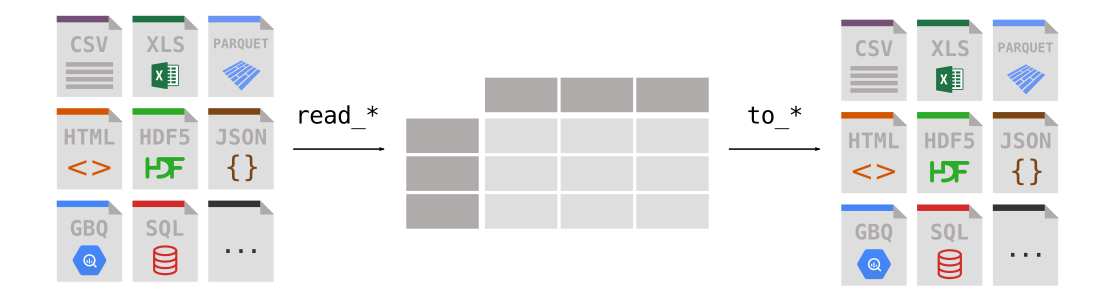
Once data is collected, the first step is importing it into a structured form that Python can interpret. The `pandas` library provides the foundation for this, it can read nearly any file format used in engineering (text files, CSV, Excel sheets, CFD results, etc. as well as many python formats such as, arrays, lists, dicitonaries, Numpy arrays etc.) and organize the data in a DataFrame, a tabular structure similar to an Excel sheet but optimized for coding.
## Importing spreadsheets using Pandas
Comma-Separated Values (CSV) files is a common spreadsheet type file. It is essentially a text file where each line is a now row of tables and commas indicate that a new column has stated. It is a standard convention to save spreadsheets in this format.
Let's take a look at how this works in python.
```python
import pandas as pd
# Read a CSV file
df = pd.read_csv("data_experiment.csv")
# Optional arguments
df_csv = pd.read_csv(
"data_experiment.csv",
delimiter=",", # specify custom delimiter
header=0, # row number to use as header
index_col=None, # or specify a column as index
skiprows=0, # skip metadata lines
)
print df
```
We now created a new dataframe with the data from our .csv file.
We can also do this for **excel files**. Pandas has a built-in function to make this easier for us.
```python
df_xlsx = pd.read_excel("temperature_log.xlsx", sheet_name="Sheet1")
print(df_xlsx.head())
```
Additionally, although not a very common practice in engineering but very useful: Pandas can import a wide variety of file types such as JSON, HTML, SQL or even your clipboard.
### Handling Headers, Units, and Metadata
Raw data often contains metadata or units above the table. Pandas can account for this metadata by skipping the first few rows.
```python
df = pd.read_csv("sensor_data.csv", skiprows=3)
df.columns = ["Time_s", "Force_N", "Displacement_mm"]
# Convert units
df["Displacement_m"] = df["Displacement_mm"] / 1000
```
### Writing and Editing Data in pandas
https://pandas.pydata.org/docs/getting_started/intro_tutorials/02_read_write.html
Once data has been analyzed or cleaned, `pandas` allows you to **export results** to multiple file types for reporting or further processing. Similarily to importing we can also export .csv files and Excel files. Pandas makes it easy to modify individual datapoints directly within a DataFrame. You can localize entries either by label or position
```python
# by name
df.loc[row_label, column_label]`
#or by position
df.iloc[row_index, column_index]
```
```python
import pandas as pd
# Create DataFrame manually
data = {
"Time_s": [0, 1, 2, 3],
"Force_N": [0.0, 5.2, 10.4, 15.5],
"Displacement_mm": [0.0, 0.3, 0.6, 0.9]
}
df = pd.DataFrame(data)
# Edit a single value
df.loc[1, "Force_N"] = 5.5
# Export to CSV
df.to_csv("edited_experiment.csv", index=False)
```
This workflow makes pandas ideal for working with tabular data, you can quickly edit or generate datasets, verify values, and save clean, structured files for later visualization or analysis.
## Subsetting and Conditional filtering
You can select rows, columns, or specific conditions from a DataFrame.
```python
# Select a column
force = df["Force_N"]
# Select multiple columns
subset = df[["Time_s", "Force_N"]]
# Conditional filtering
df_high_force = df[df["Force_N"] > 50]
```
![[Pasted image 20251013064718.png]]
## Combining and Merging Datasets
Often, multiple sensors or experiments must be merged into one dataset for analysis.
```python
# Merge on a common column (e.g., time)
merged = pd.merge(df_force, df_temp, on="Time_s")
# Stack multiple test runs vertically
combined = pd.concat([df_run1, df_run2], axis=0)
```
## Problem 1: Describe a dataset
Use pandas built-in describe data to report on the statistical mean of the given experimental data.
```python
import matplotlib.pyplot as plt
plt.plot(df["Time_s"], df["Force_N"])
plt.xlabel("Time (s)")
plt.ylabel("Force (N)")
plt.title("Force vs. Time")
plt.show()
```
### Problem 2: Import time stamped data
### Further Docs
[Comparison with Spreadsheets](https://pandas.pydata.org/docs/getting_started/comparison/comparison_with_spreadsheets.html#compare-with-spreadsheets)
[Intro to Reading/Writing Files](https://pandas.pydata.org/docs/getting_started/intro_tutorials/02_read_write.html)
[Subsetting Data](https://pandas.pydata.org/docs/getting_started/intro_tutorials/03_subset_data.html)
[Adding Columns](https://pandas.pydata.org/docs/getting_started/intro_tutorials/05_add_columns.html)
[Reshaping Data](https://pandas.pydata.org/docs/user_guide/reshaping.html)
[Merging DataFrames](https://pandas.pydata.org/docs/user_guide/merging.html)
[Combining DataFrames](https://pandas.pydata.org/docs/getting_started/intro_tutorials/08_combine_dataframes.html)
|
